Service photos and signatures
A folder full of close-ups leaves the office guessing. Tie each photo and signature to the visit and explain what it records.
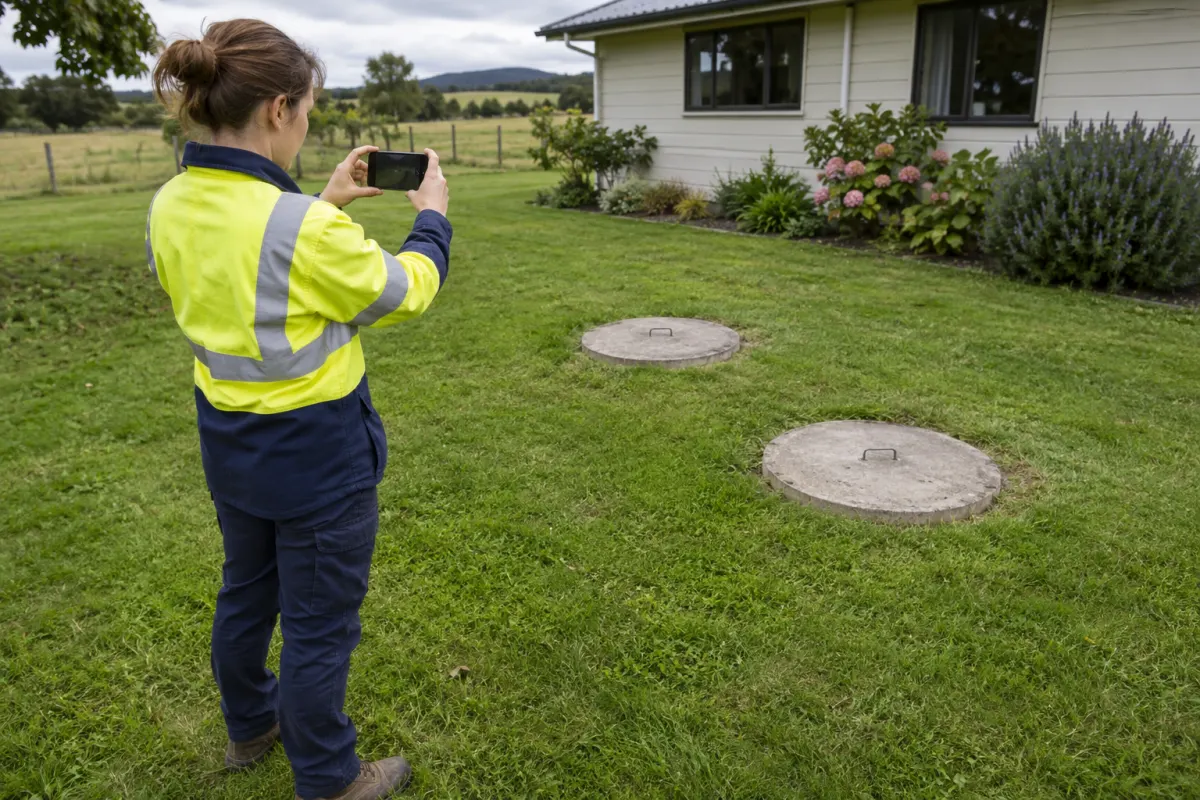
The technician remembers exactly what a close-up shows. Two weeks later, someone in the office sees a grey component with no caption and can’t tell which system it belongs to. Taking the image was only the first part of recording useful evidence.
Agree on a simple capture routine for each type of visit. It should explain what your business needs to record, how the technician identifies it and how the office checks that it arrived. Requirements for a particular report still come from that report and the work involved; this is a filing and communication process.
Start with the right job
Open the visit and confirm the system before taking photos. A phone’s general camera roll mixes sites and personal images, leaving someone to work out the connections afterwards. Capture into the job where possible, or use an agreed naming and transfer process that preserves the link.
At a property with multiple systems, include the specific system identifier in the evidence record. The system history should make it possible to find that visit later without relying on the technician recognising the picture.
Make sure the device has the current job before leaving reception. If you expect to work offline, test capture against downloaded work rather than discovering on site that the right booking is unavailable.
Show context and detail
Choose images that answer a question. A context view can identify where the component sits; a closer image can show the observation. Several near-identical photographs don’t necessarily tell the office more.
Check the image on the device while you’re still there. If it is blurred or the relevant part is out of frame, capture a clearer one where that can be done within your established work procedures. The office can’t improve a missing view later.
Keep unrelated people, neighbouring properties and personal information out of the frame where they aren’t needed for the record. Share evidence through the business’s agreed channels so the job record remains the place colleagues look for it.
Write the caption now
A useful caption identifies the system or component and explains what the technician is recording. Distinguish the observation from a proposed explanation. A photograph can document a visible condition without proving why it occurred.
Add whether the image is before work, after work or a fault record when that distinction matters. Use the visit date from the record and preserve the original image. If an arrow or circle helps explain the point, keep the annotated version alongside it rather than replacing the source.
For an unresolved issue, create a defect follow-up as well. A caption inside a report is unlikely to appear in tomorrow’s list of work needing approval.
Identify the signer
Before asking for a signature, make the purpose clear and let the person review what they’re signing. Record the name and role required by your process, such as technician, owner or site contact. A mark on a screen without that context is difficult to interpret later.
Keep different purposes separate in the workflow. A customer acknowledging a visit, a technician signing a service declaration and a customer accepting a quote concern different records. Check that your app labels the action clearly instead of reusing an unexplained signature box.
If the expected person isn’t available, record the situation and use your business’s agreed follow-up process. Don’t enter another person’s name to make the form look finished. Questions about a particular declaration should be resolved before the document is issued.
Check the upload
At handover, confirm the office can open the full files. Job text may arrive before larger photos, particularly after a day without reception. Compare the expected attachments with the actual report and resolve anything still waiting in the device queue.
Include a photo and signature in your offline app test, then open them from the office side after reconnecting. Keep that check in the daily handover until the crew knows the routine.
Rangefront Waste supports captioned photos, separate original and marked-up copies, and customer, site contact and technician signatures. At a site with several systems, a photo can be filed with one system instead of the job, and a serial plate photo can be taken with the number typed or confirmed beside it. Photos stay on the job and system; they are not yet printed on the report PDF. Files are queued offline, with photos uploading after job data. When comparing septic service software, check the completed report as well as the phone screen: the evidence needs to remain understandable to the person receiving it.