What to check before invoicing a septic job
A finished job can still have missing charges, the wrong billing contact or a deposit that needs checking. Use this office review before sending the invoice.
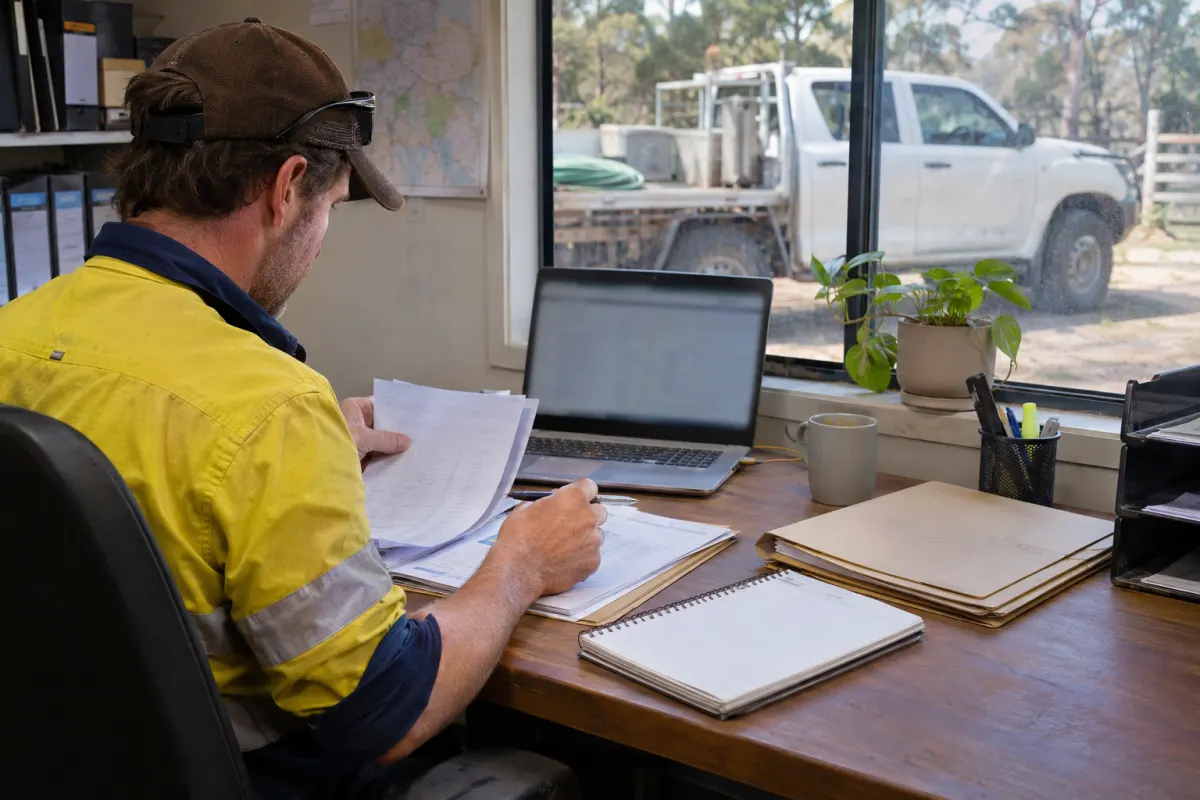
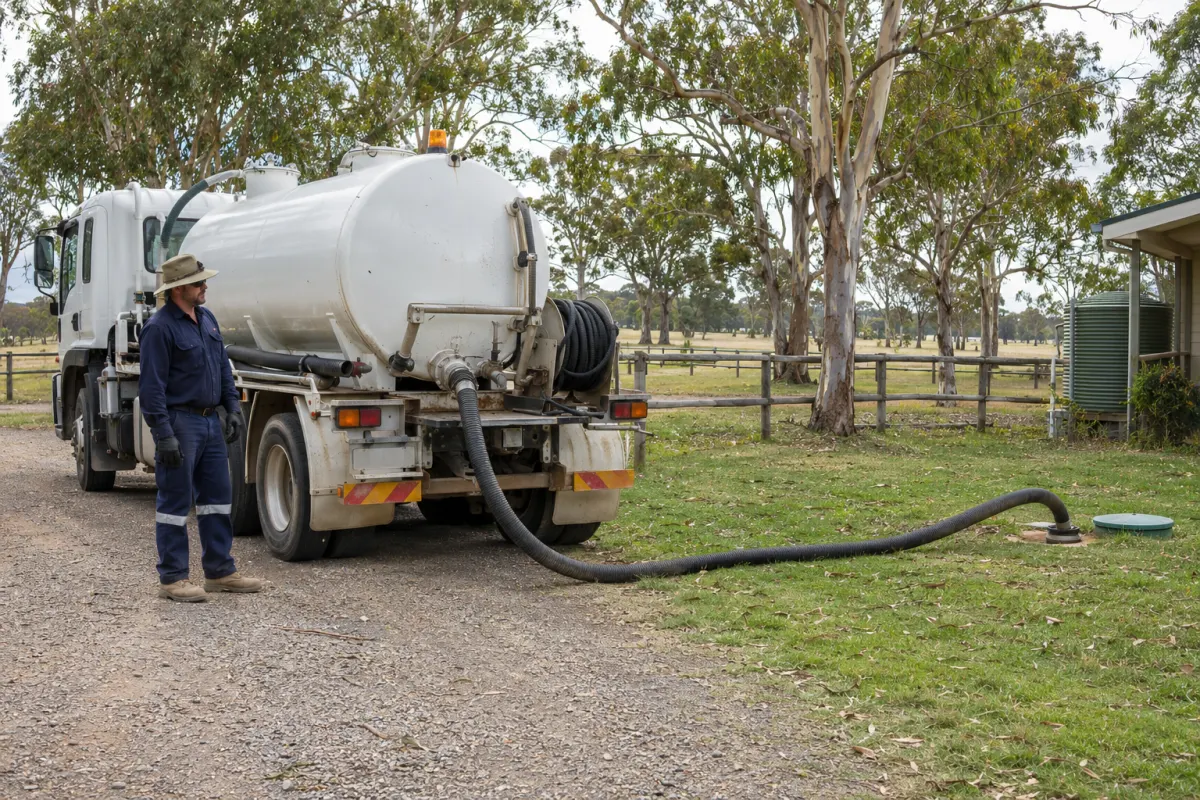
The truck has finished the job, but the invoice draft still needs a review. Sending it straight away only helps if it describes the right work and asks the right person to pay.
Keep a visible queue of completed jobs waiting to be billed. Otherwise the office tends to process the easy ones and leave the awkward job with missing volume or an unanswered pricing question until the customer has forgotten the visit.
Confirm the customer and property
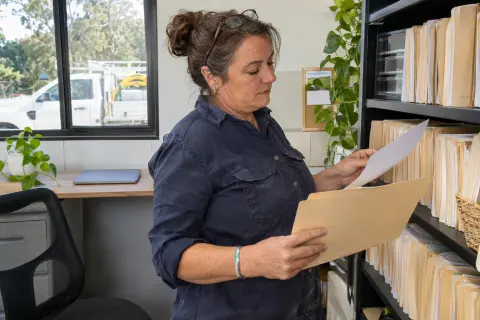
Start with the job record. Check the service address, the tank or system worked on, the service date and the billing customer. One customer can own several properties, and one property can have several systems. A familiar name isn’t enough to identify the charge.
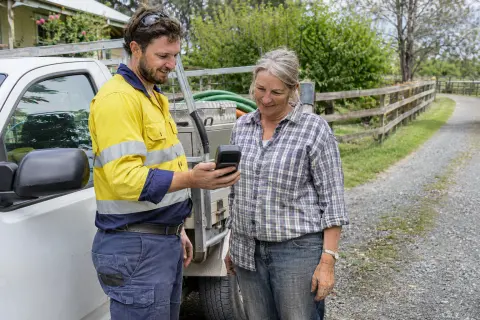
Confirm the recipient too. The tenant who let the technician in may have no authority to approve or pay the invoice. Keep the customer’s billing name and invoice address current, and check any purchase order or reference they’ve asked you to include. Don’t create another customer because a billing contact has changed jobs.
A short description should let the customer recognise the visit without opening an attachment. Include the address or agreed site reference where it helps them match the work to their own records.
Compare scope and work
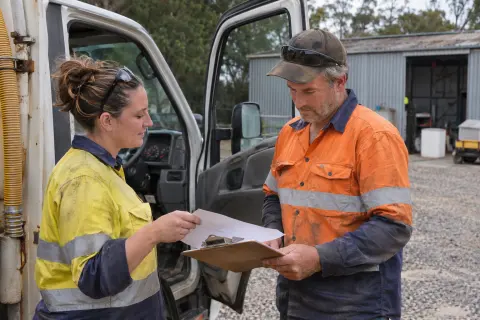
Open the accepted quote if there was one. Match its chosen option against the work completed, then check any approved changes. A larger pump-out, extra material or return visit should have a clear record explaining the charge.
If the technician reported an incomplete job, don’t describe it as a full completed service. Work out what was done, what is chargeable under the agreement and what needs a separate booking. Keep unresolved pricing questions with a named person in the office, rather than adding a guess to get the draft out of the queue.
Our pump-out quote guide covers the assumptions worth recording before work starts. Those details make this stage much quicker.
Read every line
Check quantities and units, particularly volume and time. Make sure a quantity entered in litres hasn’t been treated as kilolitres, or a travel allowance billed alongside a rate that already includes it. Look for duplicate disposal and material charges.
Use the customer’s agreed rate where one applies. If you’re changing a rate, deal with the agreement before relying on a new price book value. The invoice should reflect the work and terms accepted for that visit.
Review the totals and any payments already received. A deposit needs to reduce what remains owing in the correct way. Check a part-paid deposit carefully: the amount requested and the amount received can be different. If something doesn’t reconcile, resolve it before sending another payment request.
Decide who sends it
Some businesses send invoices from their job system; others keep that step in Xero. Choose one process and tell the office team which system owns the customer message. Duplicate invoice emails and overdue reminders make a paid account look unpaid.
Check payment instructions and the due date in the actual PDF or customer view. Open the document rather than assuming the logo and bank details are still correct. For card payments, use the invoice’s payment link, so the payment can be matched back to that invoice.
Track what leaves the office
Save the issued invoice and its delivery details. A sent message and a delivered message are different states. If an email fails, fix the recipient or contact the customer and record how you sent the replacement.
Review completed but unbilled jobs during the week, alongside failed invoice deliveries. Don’t wait for month-end to discover a week’s worth of visits with no invoice.
Rangefront Waste’s To bill list shows completed jobs without invoices. A draft can be built from the recorded charges and checked before issue. It supports pump-out volume, labour, disposal, travel and materials priced from the business’s price book. Sent invoices keep their lines as issued. See invoicing and payments for the full workflow, including using Xero to send invoices.